

Artificial Intelligence, Software, Online Tools
Dokie Review: We Tracked Every Single Minute Saved on Slide Revisions

What is Dokie?
Dokie is an AI presentation maker that helps users create professional slide decks from ideas, notes, documents, URLs, and other source materials. It is built for users who need clean, editable, brand-aligned presentations without spending hours manually building every slide.
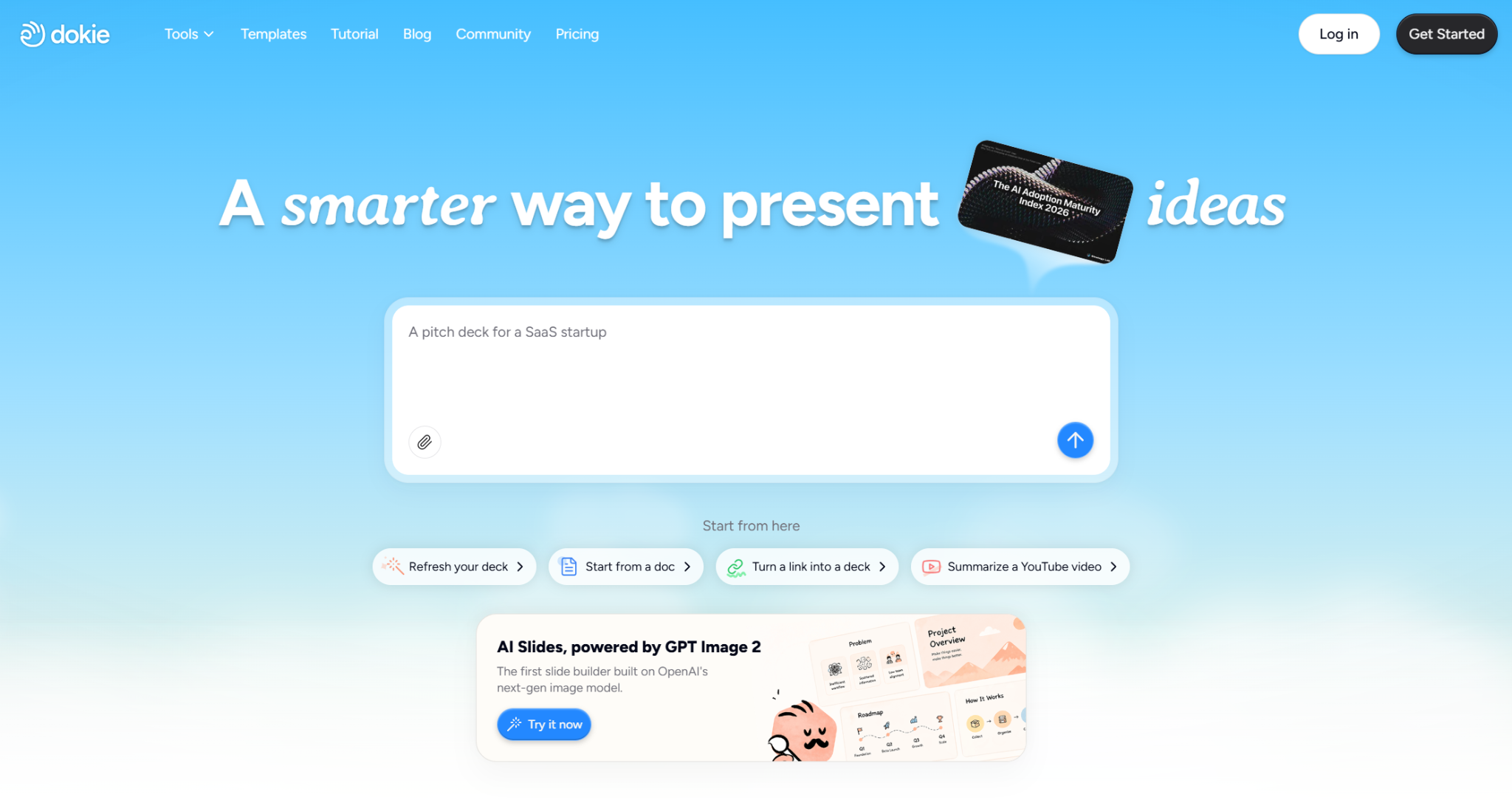
Dokie can help generate a first draft, but this review focuses on the revision stage.
That distinction matters because presentations are rarely finished after the first draft. A deck may need layout changes, copy edits, brand adjustments, visual updates, section restructuring, and final polish before it is ready to share.
The platform supports post-generation editing. Users can describe what they want to change, refine slides through chat, tweak text and visuals, preview edits, and keep improving the deck without starting over.
The tool may be relevant for business presentations, pitch decks, sales decks, marketing reports, training materials, classroom slides, executive updates, and team presentations.
Why Slide Revisions Take So Much Time
Slide revisions take longer than most teams expect.
The problem is not only writing content. It is the chain reaction that happens after every change.
A manager asks to shorten a slide. Now the layout has extra space.
A client asks for a new section. Now the deck flow needs to change.
A marketer updates the message. Now the title and visuals no longer match.
A brand reviewer asks for consistency. Now every slide needs to be checked.
A sales lead wants a timeline. Now someone has to build it manually.
A product manager changes technical details. Now the slide becomes too dense.
This is why slide revisions are painful. Every edit creates more edits.
Traditional presentation tools give users full control, but they also require manual work. Users must move objects, resize boxes, rewrite text, align visuals, check spacing, and make sure the deck still looks consistent.
AI-assisted editing may reduce some of that manual burden by allowing users to describe revision requests instead of adjusting every element by hand.
How We Tracked Time Saved
This review uses a modeled time-tracking workflow based on a realistic business presentation revision task.
The scenario:
A 20-slide business deck has already been generated or drafted. It includes an executive summary, product overview, market analysis, customer pain points, solution slides, competitor comparison, timeline, pricing slide, case study, and next steps.
The deck is not ready yet. It needs a full revision pass before it can be shared with a client or internal leadership team.
The revision tasks include:
- Simplifying dense slides
- Changing layouts
- Improving slide titles
- Adding or replacing visuals
- Creating a timeline
- Reworking a comparison slide
- Applying brand consistency
- Fixing spacing and formatting
- Reordering sections
- Final review before delivery
The time estimates below compare a traditional manual workflow with a Dokie-assisted workflow. They are not a controlled lab benchmark. They are a practical workflow model for understanding where time is usually saved.
Time Tracking Table: Manual Revision vs. Dokie Revision
| Revision Task | Manual Workflow Estimated Time | Dokie-Assisted Estimated Time | Estimated Time Saved |
|---|---|---|---|
| Review full deck and identify issues | 10 minutes | 8 minutes | 2 minutes |
| Simplify dense text-heavy slides | 20 minutes | 9 minutes | 11 minutes |
| Rewrite weak slide titles | 12 minutes | 5 minutes | 7 minutes |
| Change three slide layouts | 24 minutes | 8 minutes | 16 minutes |
| Turn a bullet list into a process slide | 12 minutes | 4 minutes | 8 minutes |
| Create or revise a timeline slide | 15 minutes | 5 minutes | 10 minutes |
| Improve a comparison slide | 14 minutes | 5 minutes | 9 minutes |
| Add or replace visuals | 16 minutes | 7 minutes | 9 minutes |
| Apply brand/style consistency | 22 minutes | 8 minutes | 14 minutes |
| Fix spacing, alignment, and formatting | 25 minutes | 8 minutes | 17 minutes |
| Reorder sections and adjust flow | 10 minutes | 5 minutes | 5 minutes |
| Final review and delivery polish | 15 minutes | 10 minutes | 5 minutes |
| Total | 195 minutes | 82 minutes | 113 minutes |
In this modeled workflow, Dokie saves about 113 minutes on a 20-slide revision cycle.
That does not mean every user will save exactly 113 minutes. The actual number depends on deck complexity, user skill, brand requirements, and the amount of editing needed.
In this modeled workflow, the largest time differences appeared in tasks involving layout, formatting, structure, and repeated edits.
Reviewing the Deck
The first step in any revision workflow is review.
In a manual workflow, users typically click through the deck, mark issues, write comments, and decide what needs to be fixed. This part does not disappear with Dokie. Human judgment still matters.
However, the platform can make the review process more actionable because users can turn observations directly into revision instructions.
Instead of writing “Slide 6 is too dense” and later fixing it manually, the user can ask Dokie to simplify the slide, improve hierarchy, or turn the content into a better layout.
That saves only a small amount of time at the beginning, but it changes the rest of the workflow.
The review becomes less like a list of problems and more like a sequence of edits.
Simplifying Dense Slides
Text-heavy slides are one of the biggest time drains in presentation revision.
A dense slide usually needs several edits at once:
- Shorter text
- Clearer title
- Better hierarchy
- More whitespace
- Improved layout
- Stronger visual emphasis
In a manual workflow, the user has to rewrite the copy, resize text boxes, rebalance spacing, and check that the slide still looks consistent.
With the tool, the user can describe the desired outcome:
- Make this slide more concise
- Turn this into three clear takeaways
- Make this slide easier for executives to read
- Reduce the text and improve the visual hierarchy
This is one area where AI-assisted editing may reduce manual revision time. The user still reviews the result, but the heavy first pass is faster.
In our modeled workflow, simplifying dense slides saved about 11 minutes.
Rewriting Slide Titles
Weak slide titles make decks feel generic.
Many drafts use descriptive titles such as “Market Overview” or “Product Features.” Business decks often need message-driven titles, such as “Demand Is Shifting Toward Faster Content Creation” or “Our Workflow Reduces Manual Design Time.”
Rewriting titles manually is not difficult, but it is repetitive. It also requires users to maintain a consistent tone throughout the deck.
This workflow helps by letting users request stronger titles across slides or within a section.
A useful instruction might be to rewrite these slide titles to sound more executive-friendly and insight-driven.
This saves time because the user can review options instead of starting from scratch.
In our modeled workflow, title revision saved about 7 minutes.
Changing Slide Layouts
Layout changes are one of the areas where the modeled workflow showed the largest time difference.
A business deck often needs different slide types:
- Comparison
- Timeline
- Process
- Metric summary
- Case study
- Executive summary
- Problem-solution
- Roadmap
- Before-and-after
- Next steps
In PowerPoint, changing a layout manually can take several minutes per slide. The user has to move text, resize objects, create shapes, align elements, and check spacing.
With the tool, layout changes can be described through natural language:
- Turn this slide into a comparison layout
- Make this section a three-step process
- Change this slide into a timeline
- Create a clearer executive summary layout
- Make this slide more visual and less text-heavy
This does not remove all review work, but it reduces the manual setup.
In our modeled workflow, changing three slide layouts saved about 16 minutes.
Turning Bullet Points Into a Process Slide
Bullet points are easy to create but often weak for communication.
If a slide describes a workflow, implementation plan, customer journey, or product process, a bullet list is usually not the best layout. A process slide is clearer.
Manually converting bullets into a process slide can take time because the user needs to create steps, align blocks, add icons, and balance spacing.
The software can speed this up with a simple instruction:
Turn this bullet list into a four-step process slide with concise labels.
This is a small but meaningful time saver. It also improves slide quality because the layout better matches the message.
In our modeled workflow, this saved about 8 minutes.
Creating or Revising a Timeline
Timeline slides are common in business decks, but they are slow to edit manually.
A user may need to add milestones, change phases, adjust dates, rename steps, or convert a text list into a visual roadmap.
In a manual workflow, timeline revision can involve moving several elements, adjusting spacing, and checking alignment.
With the tool, users can ask for a timeline directly:
- Turn this implementation plan into a four-phase timeline
- Make this roadmap easier to read
- Convert these milestones into a horizontal timeline
This is one of the areas where the software feels especially practical. The user is not asking the AI to invent the strategy. They are asking it to represent the strategy more clearly.
In our modeled workflow, timeline revision saved about 10 minutes.
Improving a Comparison Slide
Comparison slides are important in pitch decks, sales decks, product decks, and strategy presentations.
A weak comparison slide may look like a bullet list or a dense table. A stronger comparison slide clearly highlights the key differences.
Manual editing can take time because comparison slides require structure: columns, labels, icons, feature groupings, spacing, and visual hierarchy.
The platform can help with instructions such as:
- Make this a clear two-column comparison
- Compare these three options in a cleaner layout
- Highlight the key differences more clearly
This saves time and improves readability.
In our modeled workflow, improving a comparison slide saved about 9 minutes.
Adding or Replacing Visuals
Visual updates can take longer than expected.
Users may need to find an image, choose icons, match the style, resize visuals, place them correctly, and make sure they do not disrupt the layout.
This workflow helps by making visual changes part of the editing workflow. Users can ask for more business-oriented visuals, better use of icons, or a cleaner visual structure.
Useful instructions include:
- Add icons that match this business style
- Replace this generic image with something more relevant
- Make this slide more visual without adding clutter
Visuals still require human judgment. A user should check whether the selected image or icon fits the context. But Dokie reduces the manual work of turning a text-heavy slide into a more visual one.
In our modeled workflow, visual updates saved about 9 minutes.
Applying Brand and Style Consistency
Brand consistency is one of the biggest hidden time costs.
A deck may look fine slide by slide, but it is inconsistent as a whole. One slide uses a different spacing system. Another slide has a different image style. A section divider does not match. Titles are not aligned.
In a manual workflow, users must check every slide carefully and fix inconsistencies one by one.
The tool helps by supporting brand-aligned workflows and style references. Users can ask Dokie to keep the deck aligned with a template or style direction.
A useful instruction might be to make these slides consistent with the uploaded template style or to clean up formatting across the deck and keep the visual style consistent.
This can affect more than speed, since consistency also influences how polished the final deck appears.
In our modeled workflow, brand/style consistency saved about 14 minutes.
Fixing Spacing, Alignment, and Formatting
Spacing and alignment are the least exciting parts of presentation work, but they can consume the most time.
After multiple revisions, slides often become uneven. Text boxes shift. Visual blocks no longer align. Section spacing changes. Font sizes become inconsistent.
Manual formatting cleanup is slow because it requires attention to detail across the whole deck.
The platform helps reduce this work by allowing users to request cleanup through chat. The user can ask for a slide or section to be cleaned up without manually adjusting every object.
Useful instructions include:
- Fix the spacing and alignment on this slide
- Make this slide look cleaner and more balanced
- Match this slide’s formatting to the rest of the deck
In our modeled workflow, formatting cleanup saved about 17 minutes, the largest single time-saving category.
Reordering Sections
Reordering sections is easy in theory but can create new issues.
When a section moves, transitions may no longer make sense. The narrative may need to be adjusted. Slide titles may need changes. The summary may need to reflect the new order.
The tool can help by making section-level edits easier.
A user might ask to move the customer pain point section before the solution section and adjust the flow.
This is faster than manually moving slides and rewriting transitions.
In our modeled workflow, section reordering saved about 5 minutes.
Final Review and Delivery Polish
Final review still requires human attention.
This workflow can help clean the deck, but users should still check:
- Is the information accurate?
- Are claims supported?
- Does the deck fit the audience?
- Is the tone right?
- Are the visuals appropriate?
- Is the branding consistent?
- Does the deck tell a clear story?
The tool may save less time on tasks that require human business judgment.
In our modeled workflow, final polish saved about 5 minutes.
Where Dokie Saves the Most Time
The platform saves the most time in tasks that are repetitive, visual, or structure-heavy.
The biggest savings usually come from:
- Changing layouts
- Fixing formatting
- Cleaning spacing and alignment
- Turning bullets into structured slides
- Applying style consistency
- Rewriting titles and dense slides
- Creating timelines or comparison slides
These tasks are time-consuming in traditional tools because they require manual formatting. The platform speeds them up by letting users describe the desired outcome rather than editing each object directly.
The impact may be greater when a deck requires substantial layout or formatting changes.
Where Dokie Saves Less Time
The tool saves less time on tasks that require human business judgment.
For example, Dokie cannot fully decide whether a pricing claim is correct, whether a financial number is approved, whether a customer case study can be shared, or whether a strategic recommendation is politically sensitive.
Users still need to review content carefully.
The tool may also save less time for users who already have a highly polished final deck and only need tiny manual changes.
It may be most relevant when a deck needs meaningful revision.
Why Slide Revision Time Matters
Slide revision time matters because presentations are rarely one-person projects.
A business deck may involve sales, marketing, product, leadership, finance, legal, and design. Each stakeholder adds feedback. Every feedback round creates more work.
If each round requires manual formatting, the deck becomes expensive in time.
Reducing revision time changes the workflow. Teams can spend more time improving the message and less time fixing slide mechanics.
This may be practical when the goal is to represent an existing strategy more clearly.
It not only creates slides faster. It makes iteration faster.
Dokie vs. Manual PowerPoint Revisions
PowerPoint gives users detailed control, but it also requires manual effort.
For advanced users, that control is valuable. But for many business users, revising PowerPoint presentations is slow because every layout change requires manual editing.
Dokie does not replace PowerPoint in every case. Instead, it can reduce the amount of work users need to do before the final polish.
A practical workflow is:
- Use Dokie to generate or import the deck
- Use chat-driven edits to revise structure and layouts
- Use Dokie to clean formatting and apply style consistency
- Review the final deck
- Use PowerPoint only for final precision adjustments if needed
This workflow is faster than doing every revision manually.
Dokie vs. Basic AI PPT Generators
Basic AI PPT generators are useful for creating a quick first draft.
But many of them become less useful after the deck is generated. If the user needs to change layouts, fix formatting, apply brand consistency, or revise slides after feedback, the work often becomes manual again.
This platform may be more relevant for users who need revisions after generation.
That is important because the first draft is rarely the final deck.
A tool that helps users revise the deck is more useful than a tool that only creates it.
For Business Teams
Business teams benefit from Dokie because they often revise presentations under time pressure.
- A sales team needs a client deck
- A marketing team needs a campaign report
- A product team needs a roadmap presentation
- A manager needs an executive update
- A consultant needs a client-ready proposal
In all of these cases, the problem is not only creating slides. The problem is making the deck ready for real use.
The platform helps by reducing revision time and formatting cleanup.
For Marketing Teams
Marketing teams often care about brand consistency, messaging clarity, and visual polish.
The tool helps marketers turn campaign briefs, reports, URLs, and strategy documents into structured decks. More importantly, it helps them revise those decks after they are generated.
A marketer can ask Dokie to make a slide more client-ready, turn a campaign timeline into a clearer roadmap, or make a report slide focus on key insights.
This makes the platform useful for campaign reports, launch plans, client updates, sales enablement materials, and social carousel-style presentations.
For Sales Teams
Sales teams need to customize decks quickly.
A sales rep may need to adapt a standard deck for a prospect, add a case study, simplify the product section, or make a comparison slide more persuasive.
The platform can save time by turning these requests into targeted revisions.
Instead of rebuilding the deck manually, users can ask for specific changes and keep the overall presentation structure intact.
For sales teams, faster revisions can mean faster client-ready decks.
For Teachers and Students
Slide revision time matters in education too.
Students often spend too much time fixing formatting instead of improving their argument. Teachers may need to update lesson decks quickly before class. Trainers may need to revise materials for different groups.
The tool helps by making it easier to simplify slides, improve layouts, and keep decks consistent.
For education users, the benefit is not only speed. It is clarity.
A cleaner deck is easier to teach, present, and understand.
Pros and Cons for Slide Revisions
Pros
- It saves time on repetitive slide revision tasks
- It helps users change layouts without manually rebuilding slides
- It supports chat-based refinement, making editing more natural
- It helps with formatting consistency and visual cleanup
- It supports brand-aligned workflows with themes, templates, and references
- It is useful for business decks, education slides, pitch decks, sales materials, and reports
- It reduces the gap between the first draft and the presentation-ready deck
Cons
- The platform still requires human review
- Users must check accuracy, tone, business context, and final presentation quality
- Highly custom design work may still need manual refinement
- Teams with advanced collaboration, analytics, or approval workflows may still use other tools alongside the tool
- The workflow is strongest as a revision accelerator, not a replacement for every presentation-related tool
Is Dokie Worth It for Slide Revisions?
Yes, Dokie is worth considering if slide revisions are a recurring pain point.
If you only make one simple presentation occasionally, the time savings may not matter as much. But if you regularly create business decks, reports, client presentations, classroom slides, training materials, or sales decks, revision time adds up quickly.
This workflow is especially valuable when decks go through multiple feedback rounds.
The value may increase for users who revise slides frequently.
Final Verdict
Dokie saves time where presentation work usually hurts most: revisions.
It helps users simplify dense slides, rewrite titles, change layouts, create timelines, improve comparisons, add visuals, apply brand consistency, and fix formatting without manually rebuilding every slide.
In our modeled 20-slide business deck revision workflow, the platform reduced estimated revision time from 195 minutes to 82 minutes, saving about 113 minutes.
That number will vary depending on the deck and user, but the modeled workflow suggests that AI-assisted editing may reduce revision time in some cases.
The honest verdict is this: Dokie is not just useful because it creates slides. It is useful because it helps users keep improving them.
For users who frequently revise presentations, Dokie may be useful as a revision assistant, especially for layout changes, formatting cleanup, and structure edits.
FAQ
FAQs
01What is Dokie?
It is an AI presentation maker that helps users create and revise professional, brand-aligned slide decks from ideas, notes, documents, URLs, and source materials.
02Does Dokie save time on slide revisions?
Yes. The tool can save time by helping users make layout changes, simplify slides, adjust formatting, apply brand styles, and make targeted edits through AI-assisted workflows.
03How much time can Dokie save?
In the modeled 20-slide revision workflow in this review, the platform saved about 113 minutes compared with a traditional manual revision process. Actual savings will vary depending on deck complexity and user workflow.
04What revision tasks does Dokie help with most?
The tool helps most with layout changes, formatting cleanup, title rewriting, dense slide simplification, timeline creation, comparison slide improvements, visual updates, and brand consistency.
05Can Dokie replace manual PowerPoint editing?
The platform can reduce the amount of manual PowerPoint editing needed, but it may not replace PowerPoint for users who need final precision adjustments or advanced manual control.
06Is Dokie better than basic AI PPT generators?
The software may be more useful for users who need post-generation editing. Basic AI PPT generators are useful for first drafts, while Dokie is positioned around revision workflows.
07Does Dokie help with brand consistency?
Yes. The tool supports brand-aligned workflows using themes, templates, and reference files to help keep slides consistent.
08Can Dokie revise existing business decks?
The platform is useful for revising business decks, especially when users need to improve structure, layouts, formatting, and presentation clarity.
09Is Dokie useful for sales decks?
Yes. The software may help sales teams customize client decks, improve value proposition slides, create comparison layouts, and prepare cleaner presentations faster.
10Is Dokie useful for marketing reports?
Yes. The tool can help marketing teams turn campaign briefs, performance reports, URLs, and strategy documents into cleaner presentations and revise them faster.
11Is Dokie useful for education slides?
Yes. The platform can help teachers, students, and trainers revise lesson decks, research presentations, classroom slides, and training materials.
12Does Dokie still require human review?
Yes. Users should review the final deck for accuracy, tone, audience fit, business claims, data correctness, and brand compliance.
13Who should use Dokie?
The software may be useful for professionals, marketers, sales teams, consultants, founders, teachers, students, and teams that regularly create or revise presentations.
Comments
Comments are moderated to keep the discussion useful and respectful. Spam, automated submissions, and low-value promotional comments are removed. Comments with outbound links may be approved when the link is relevant to the article and genuinely helpful to readers.
No comments have been published yet.