

Software, Productivity, Online Tools
How to Convert JPG to Excel Without Retyping a Single Number (The Smart Way)
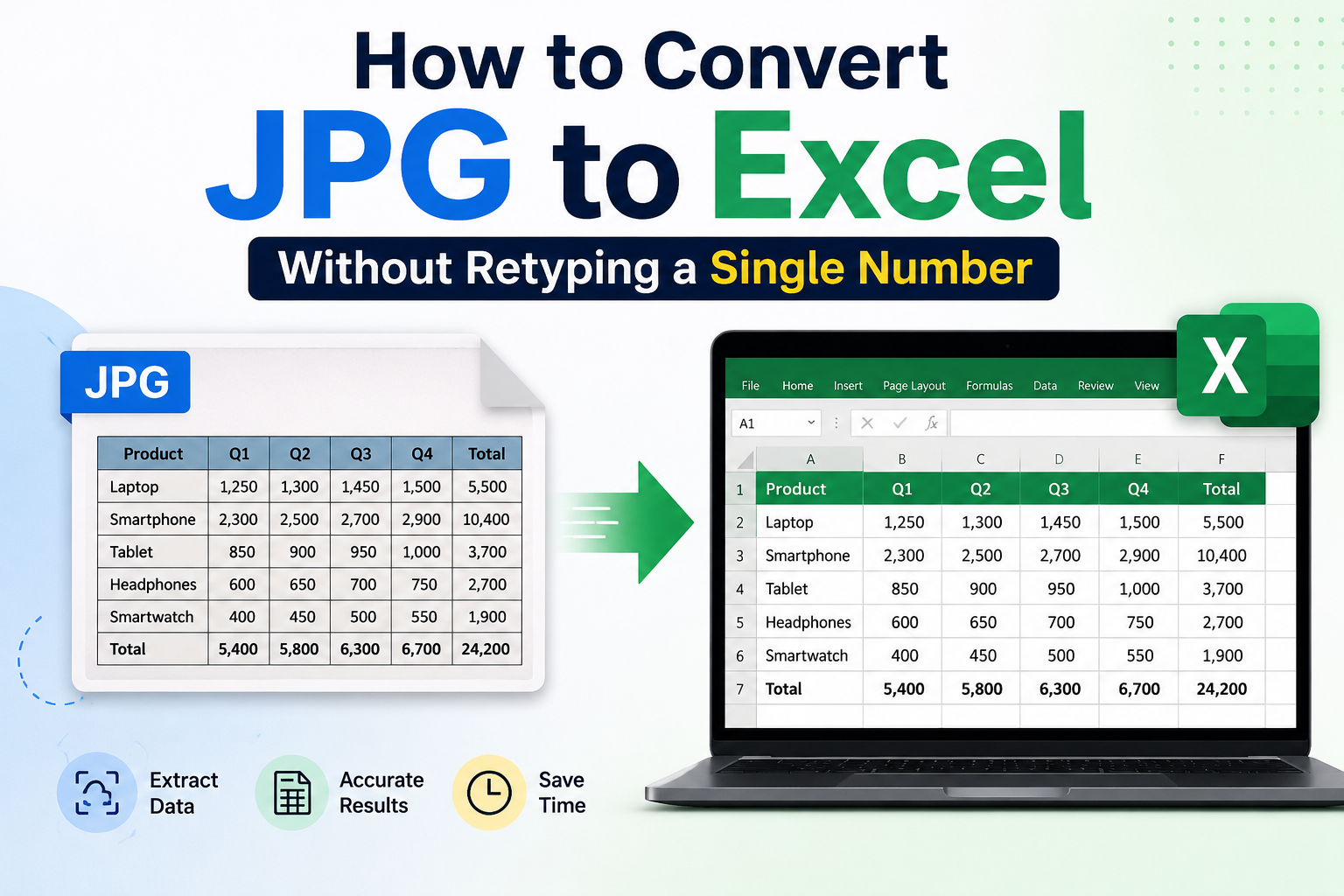
If you've ever stared at a scanned invoice, a photo of a pricing table, or a screenshot of financial data and then spent 30 minutes manually typing everything into a spreadsheet, you already know the pain. It's slow, error-prone, and honestly, it's the kind of task that shouldn't exist anymore.
Because it doesn't have to.
The Real Problem: Images Lock Your Data In
A JPG might look like a spreadsheet, but your computer sees it as a flat image, just pixels. You can't click into a cell, sort a column, or run a formula on it. To do anything useful with that data, you need to convert it into an editable format first.
That's where an image to Excel converter comes in.
These tools use OCR (Optical Character Recognition) technology to scan the image, detect rows, columns, numbers, and text, and then reconstruct all of it inside a proper Excel spreadsheet (.xlsx). The best ones don't just dump raw text; they preserve your original table structure, so the output is actually usable.
Real-World Use Cases (Who Actually Uses This?)
Before we get into the tools, let's talk about real situations where a photo to Excel converter saves significant time:
The Accountant With a Stack of Scanned Invoices
Maria works at a mid-sized logistics firm. Every month, she receives 40–60 vendor invoices as scanned PDFs and images. Before she discovered image-to-Excel tools, her team spent nearly two full days manually entering invoice totals, tax amounts, and line items into their accounting system. After switching to an OCR-based converter, that same task takes under two hours. The data comes out structured, and she only needs to do a quick spot-check.
The Researcher Working With Published Tables
Academic papers, government reports, and market research PDFs often contain tables that can't be copied as text. A researcher trying to run an analysis on that data took screenshots of the table and retyped everything. Now, a quick upload of an image to an Excel converter pulls out the table in seconds, clean rows, correct columns, ready for analysis.
The Small Business Owner Managing Inventory
A shop owner photographs their handwritten stock list at the end of every week. Rather than transcribing it, they upload the photo and extract the table directly into Excel. What used to take 45 minutes now takes under 5.
These aren't edge cases; this is exactly the kind of workflow that gets repeated thousands of times a day by people who haven't yet found the right tool.
What Makes a Good JPG to Excel Converter?
Not all converters are equal. Here's what actually matters:
- Table Structure Detection - The tool must recognize rows and columns, not just dump words in random cells. If the output requires heavy cleanup, you've saved no time.
- Accuracy on Real-World Images - Scanned documents, phone photos taken in average lighting, slightly skewed angles, a good converter handles these without falling apart.
- Supported Formats - The best tools accept not just JPG but also PNG, WEBP, HEIC, BMP, and PDF, because your files don't always come in a single format.
- No Registration Required - For a quick conversion, you shouldn't have to create an account.
- Privacy - Your financial and business data is sensitive. Files should be deleted from the server after processing, not stored indefinitely.
The Best Free Tools to Convert an Image to Excel Online
1. JPG-to-Excel.net - Best for the JPG to Excel Converter with Clean Output
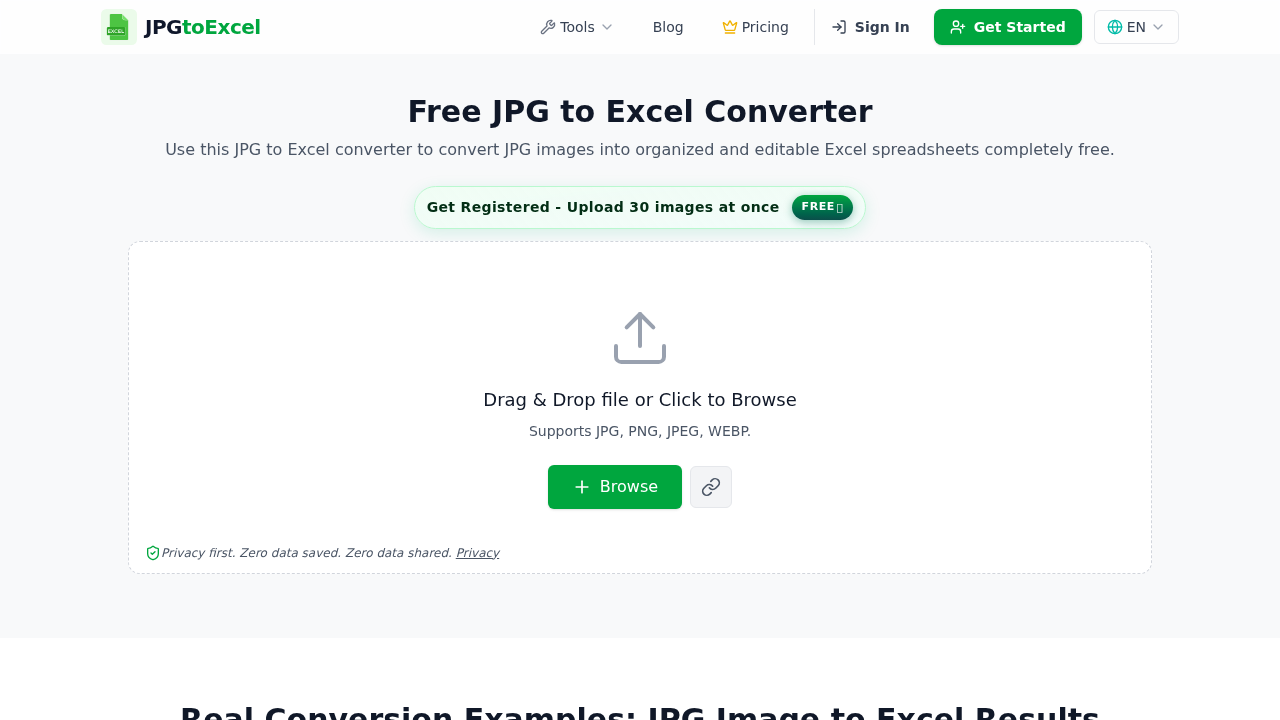
JPG-to-Excel.net is built specifically for this use case. Upload your image, and the AI-powered OCR engine detects your table structure, rows, columns, merged cells, and delivers a clean .xlsx file you can open directly in Microsoft Excel or Google Sheets.
What sets it apart is how it handles table layout. Most basic OCR tools extract text but destroy the structure. This JPG-to-Excel converter reconstructs the actual grid, so your data lands in the right cells rather than scattered across the sheet.
It also supports bulk image uploads, which matters when you're processing multiple invoices or data tables in one sitting. No account needed, and files are deleted after conversion, so your data stays private.
Best for: Invoices, financial tables, inventory lists, scanned reports
2. OCR.ac - Solid Image to Excel Converter for Quick Conversions
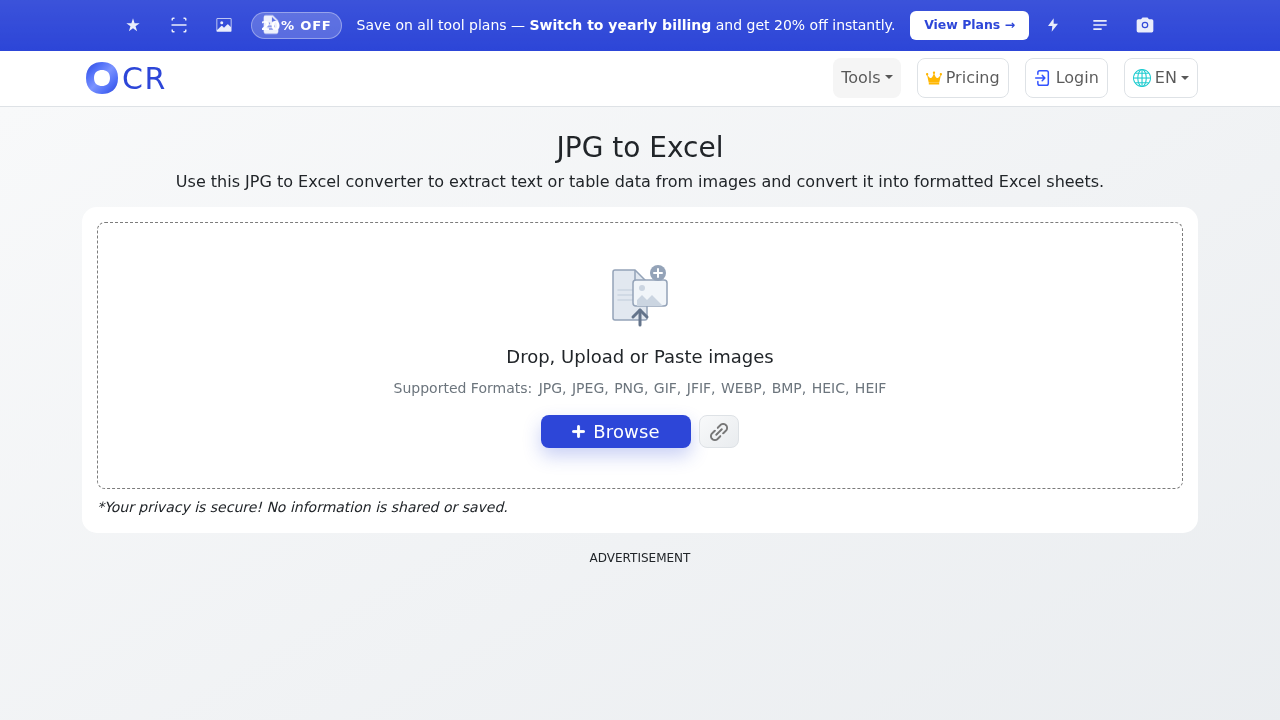
OCR.ac takes a similarly focused approach to the image-to-Excel converter problem. The interface is minimal: upload, convert, download. No clutter.
It handles multiple image formats including JPG, PNG, and WEBP, and the OCR engine performs well on clean scans and high-contrast images. For users who need a fast picture-to-Excel converter without technical setup, this is a reliable option.
The output is a standard .xlsx file compatible with all major spreadsheet tools. If you're converting a single image at a time, this tool gets the job done quickly.
Best for: Quick single conversions, clean scans, screenshots of tables
How to Extract a Table from an Image: Step-by-Step
- Prepare your image - Use a clear, high-resolution photo or scan. Good lighting matters. If your image is blurry or at a heavy angle, the OCR accuracy will drop.
- Upload to the converter - Drag and drop your file, or paste a URL if the image is hosted online.
- Run the conversion - The tool's OCR engine scans the image, identifies the table structure, and processes it. This typically takes under 30 seconds.
- Review the output - Before downloading, check the preview. Most tools let you spot-check the extracted data.
- Download your Excel file - Save it as .xlsx and open it directly in Excel or Google Sheets.
That's it. No formulas, no manual entry, no reformatting.
Tips for Better Results When You Convert a Picture to Excel
The quality of your output depends largely on the quality of your input. A few things that help:
- Shoot straight - If photographing a physical document, hold the camera directly above it, not at an angle.
- Use good lighting - Avoid harsh shadows across the table.
- Crop tightly - Remove unnecessary whitespace and surrounding text outside the table area. This helps the OCR engine focus on the right content.
- Higher resolution is better - If scanning, use at least 300 DPI for best accuracy.
- Avoid heavy image compression - Heavily compressed JPGs lose detail that OCR needs to work accurately.
When to Use a Dedicated Tool vs. Adobe or Office Built-ins
You might be wondering: can't I just use Adobe Acrobat or Microsoft Office for this?
The short answer is: it depends.
Adobe Acrobat can extract tables from PDFs, but its output for image-based files (scanned documents, photos) often requires significant manual cleanup. The cells end up merged incorrectly, or text lands in the wrong column.
Microsoft Office's built-in OCR (available in OneNote and some versions of Excel) is functional for text extraction but not optimized for structured table detection. It works if you need a quick copy-paste of text, but it won't reliably reconstruct a clean spreadsheet.
Dedicated tools are purpose-built for this specific problem, table extraction from images, which is why their output is generally cleaner and requires less post-conversion editing.
The Bottom Line
If you're still manually retyping data from images, receipts, invoices, or scanned tables into Excel, you're spending time on a task that can be fully automated.
Modern image-to-Excel converters using OCR technology have gotten genuinely good at this. They handle table structures, multiple formats, and deliver output that's ready to use, not just a messy dump of text.
Related Articles

July 27, 2024
How to convert WebP to PNG Without Losing Image Quality
Have you ever faced a situation where you needed to convert WebP to PNG but worried about losing image quality? You may want to convert WebP to PNG to ensure broader compatibility...
Read More
April 8, 2024
Extract Data from Charts and Graphs into Excel: Top 8 Image to Excel Converters
The ability to analyze data is highly important to proceed with informed decisions across certain fields. Charts as well as graphs are revealed as powerful visuals for representing...
Read More
February 20, 2024
What Is the Best Way to Convert HEIC to JPG on a PC?
So, you took a gorgeous photo on your phone, and when you went to upload it to your PC – it was in some mysteriously strange HEIC file format. Well, it happens to us all! This litt...
Read More
Comments
Comments are moderated to keep the discussion useful and respectful. Spam, automated submissions, and low-value promotional comments are removed. Comments with outbound links may be approved when the link is relevant to the article and genuinely helpful to readers.
No comments have been published yet.