

How to Convert OST to HTML With Attachments?
OST files are basically an offline copy of the user mailbox. In many cases, users need to access their OST files through any web browser. In such cases, it's necessary to convert OST files to HTML. Because the web browser can read the HTML document.
In this article, I’ll discuss how you can easily convert your OST files into HTML without losing your valuable data. Keep reading!
Things to know before you convert OST to HTML
In order to successfully convert your OST files to HTML, you must have enough technical knowledge. So that you can understand the conversion process. Besides, you should also be aware of a few terms, including:
- Be aware of the size of your OST files. Many converters have limitations on file size, so before you start converting, ensure your files fall within the acceptable range.
- In case you have multiple OST files, check whether your purchased converter supports batch conversion.
- Ensure that you have taken the necessary backups before the conversion process.
- Before purchasing any professional converter software, make sure it is compatible with your device.
- Try to stay away from using untrusted online OST converters.
How to convert OST to HTML with attachments?
OST files are basically a copy of the user mailbox. When you sign in to Outlook with the Exchange server, an offline copy of the server data is usually saved in OST format on your device. However, HTML files (Hyper Text Markup Language) are accessible through the web browser and compilers.
Actually, there isn’t any direct feature available to convert OST to HTML in Outlook. However, Microsoft Outlook allows you to save individual emails as HTML files. Here I have explained two of the best methods to convert your files:

Method 1: Manually save OST files as HTML
If you have additional OST files that aren’t linked to your Outlook profile, you need to import them into your Outlook application. After that, follow the process as given below:
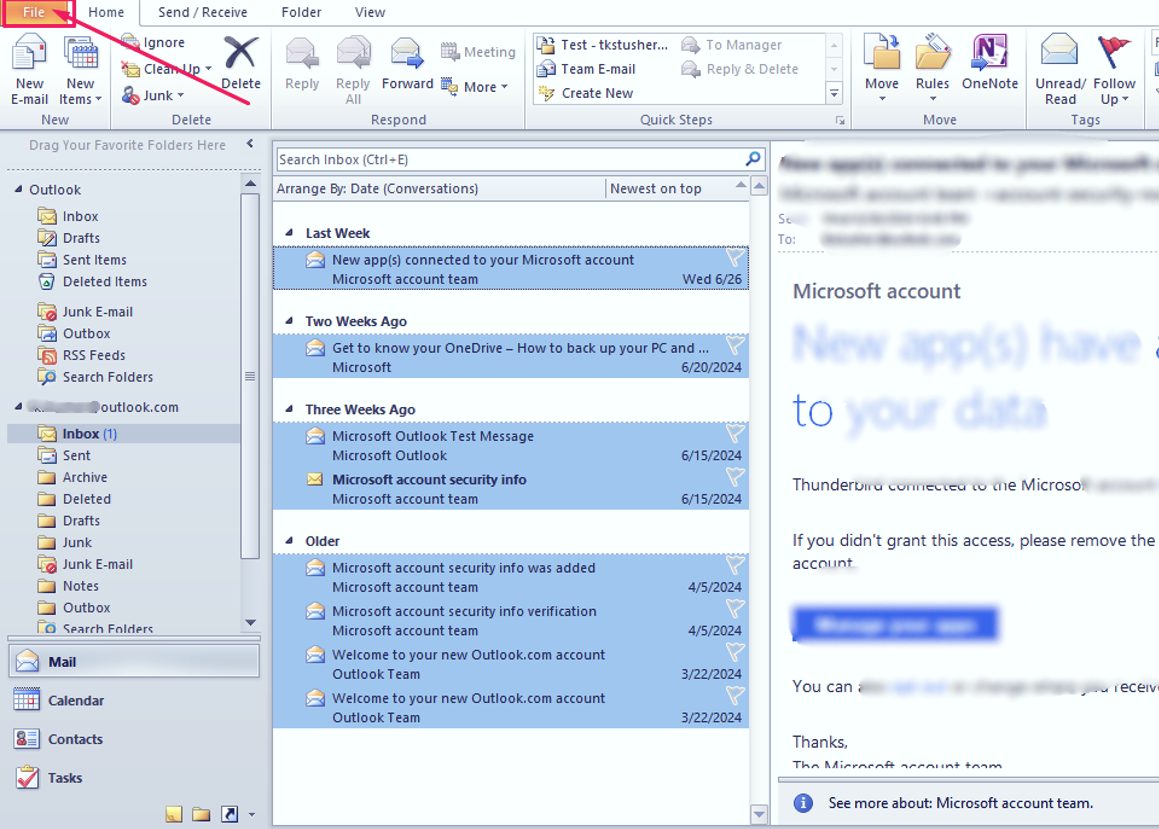
- Run your Outlook app and open the folder that contains all the emails in your OST file.
- Select the emails that you want to convert. You can press “Ctrl+A” to select emails from the total mailbox at a time.
- After you select the emails, go to the “File” tab.
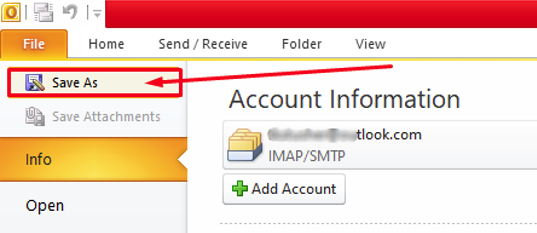
- Then click on the “Save As” button in the left sidebar.
- Whenever the “Save as” wizard appears, in the “Save As Type” field, select the “HTML” option and click on the “Save” button.
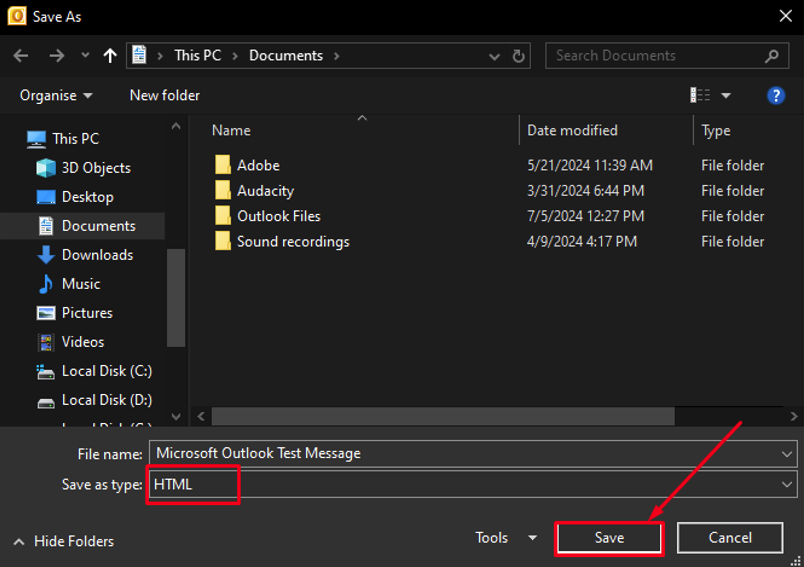
As a result, your selected emails will be saved in HTML format on your device. You can now view them through any of the browsers installed on your device.
Limitations of the manual method
- Quite difficult and time-consuming.
- Huge chances of data loss remain.
- Must have enough technical knowledge.
- If you try to save a huge number of emails at a time, the Outlook application may stop responding.
Method 2: Professionally convert Outlook OST to HTML
If you have multiple OST files, it’s quite time-consuming to save all the emails in HTML format. To speed up the process, you can use an OST to PST Converter software such as the one from Regain Software. The software allows you to convert your OST files into multiple formats, including PST, HTML, MSG, EDB, and others.
It’s quite easy to convert your files through this software. Here I have described the complete process of using this software:
- After you download the software installation file, run it as an administrator on your device.
- Click on the “Add Outlook Files [One or Multiple]” button and select the OST files that you need to convert. You can select multiple OST files, as this tool supports batch conversion. Then click on “Next”.
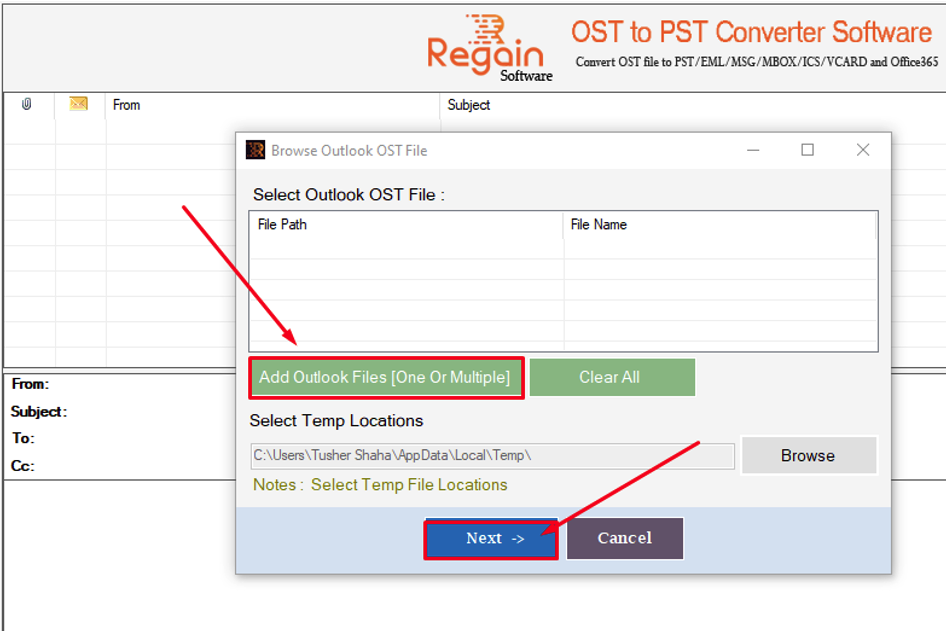
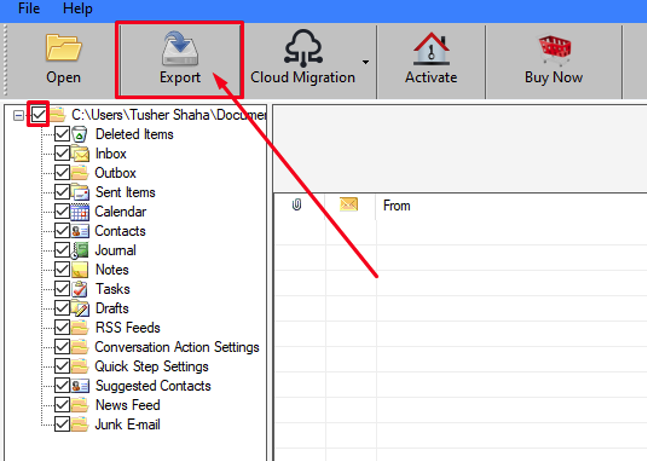
- Within a few seconds, it will scan and preview all the folders in your OST files. You can select all the folders or select any specific folders according to your needs.
- Now, at the top-left corner, click on the “Export” button.
- Then the “Export option” wizard will appear. Here, click on the “Browse” icon and choose the destination location where you want to save the converted files. Select the format in which you want to convert your files. In this case, I am selecting the “HTML” format. Then click on the “Convert Now” button.
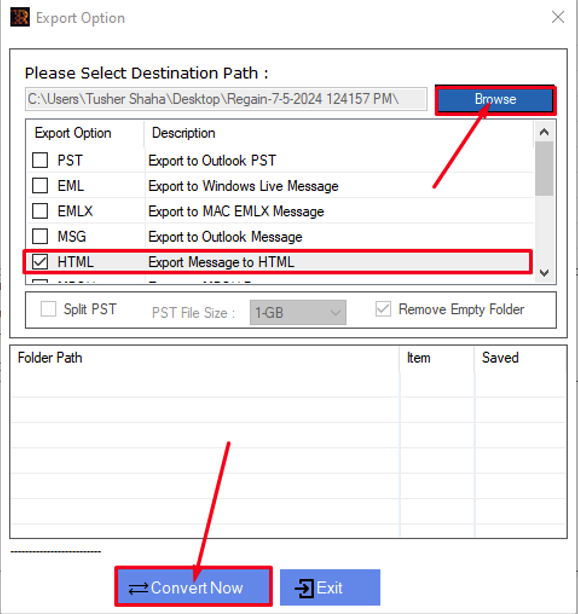
Lastly, within a few moments, it will save the converted HTML files to your selected location on your device.
Benefits of using the OST converter software
- Saves both time and effort.
- It also convert ost to pst, pdf, mbox, etc.,
- There is almost a zero percent risk of data loss during the conversion process.
- Allows you to convert OST files into multiple formats.
- Batch conversion is available. That means you can convert multiple files at a time.
- You don’t need to have much technical knowledge.
Conclusion
OST to HTML conversion allows you to access your emails through web browsers even if your device doesn't have an internet connection. But before you attempt the conversion, make sure to take backups. For a smoother conversion, try to use any professional converter software.
Comments
Comments are moderated to keep the discussion useful and respectful. Spam, automated submissions, and low-value promotional comments are removed. Comments with outbound links may be approved when the link is relevant to the article and genuinely helpful to readers.
No comments have been published yet.