

Top Ways to Ensure Smooth Photo Transfer from PC to iPhone
Transferring data from one device to another can be hectic. Similarly, saving your photo on one device can be risky, as data loss may cause you to lose your precious memories. This is why people insist on keeping backups across different devices to secure their content. However, you sometimes need to access those particular photos to show them to someone.
That is when you look for ways to transfer photos from one device to another, such as from PC to iPhone. Many methods can be employed to ensure smooth photo transfer. However, a few options are preferred when it comes to maintaining quality. In this article, we will discover easy ways to transfer photos from PC to iPhone.
Part 1. Wondershare MobileTrans: The Easy Solution for Photo Transfer From PC to iPhone
One of the major concerns you may have during photo transfer is ensuring the safety of the content. Most conventional methods lead to an excessive loss of data, which can be quite damaging to people. MobileTrans has a quick photo transfer rate, making it the ideal tool for hassle-free photo transfer.
Its advanced technology guarantees you can transfer your photos without fearing losing any data. This tool does not overwrite any of your data and also maintains the quality of your photos. From general phone content to WhatsApp data, this platform supports all sorts of data transfer, with no effective latencies.
Key Features of Wondershare MobileTrans
- Unlimited Data Transfer: The number of photos or the size of the file that you need to move from your PC to your iPhone in a single go is unlimited. MobileTrans allows users to transfer all their pictures in one go.
- One-Click Sharing: MobileTrans is one of the most convenient data transfer methods. It lets users transfer data in just one click. This tool is best when you want to quickly migrate many photos.
- Data Privacy and Security: This is a safe tool that protects data and avoids security violations. MobileTrans protects images, building a bridge of trust.
- Supports All Phone Brands: The tool supports all phone brands, whether iOS or Android, allowing users to move their data easily. It also matches the services according to the phones' consistent updates.
Part 2. [Simplified Process] How to Transfer Photos From PC to iPhone
We’ve gone through the best choice you could adopt when looking to transfer photos from PC to iPhone. Let us discuss the steps to be taken when transferring data using MobileTrans:
Step 1. Launch and Access the MobileTrans Platform
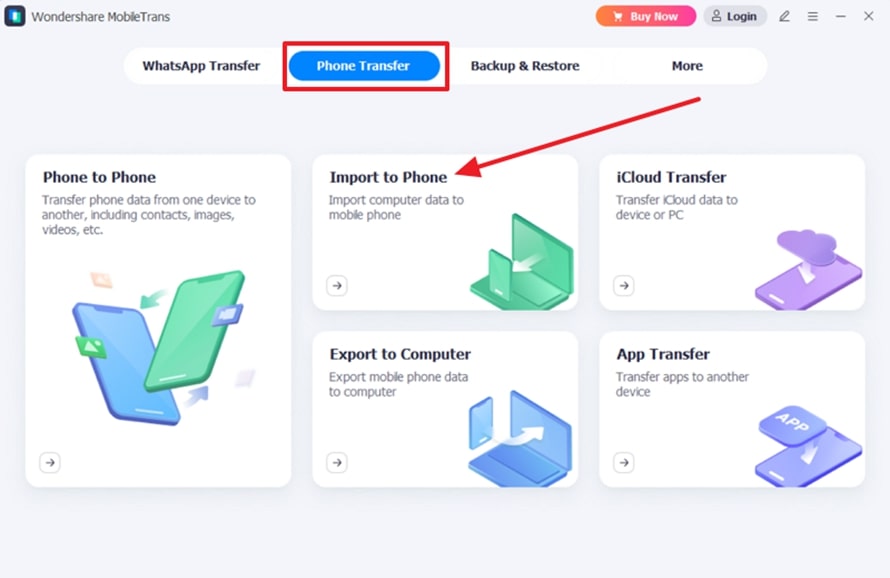
To transfer photos from PC to iPhone, download and install the MobileTrans desktop platform on your computer. Then, choose the “Phone Transfer” tab from the top navigation bar. Continue to select the “Import to Phone” feature across the window to progress further.
Step 2. Connect Your Phone to the PC
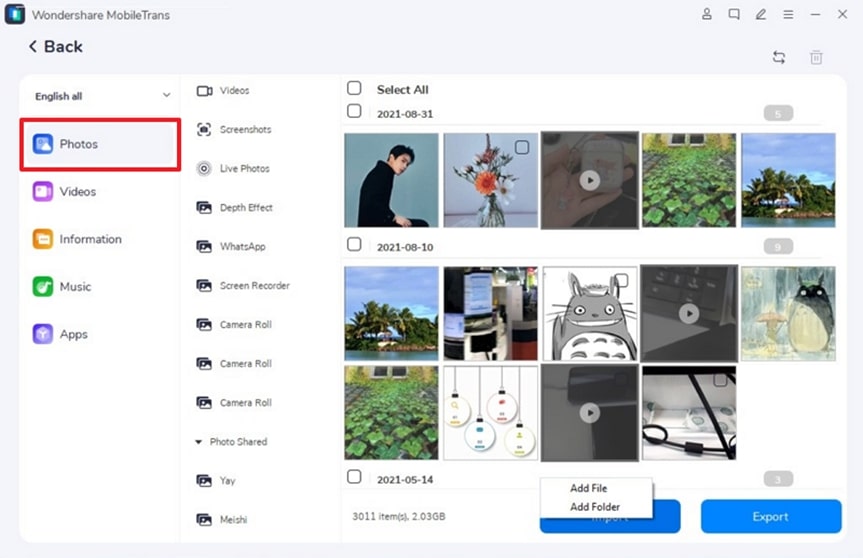
You will have to connect your phone to the PC through a wired connection. After the device is detected, its data will be displayed in the next window. Look for the “Photos” section on the left and continue towards the “Import” button for selecting if you wish to “Add File” or “Add Folder” for transferring photos.
Step 3. Select the File Type to Transfer
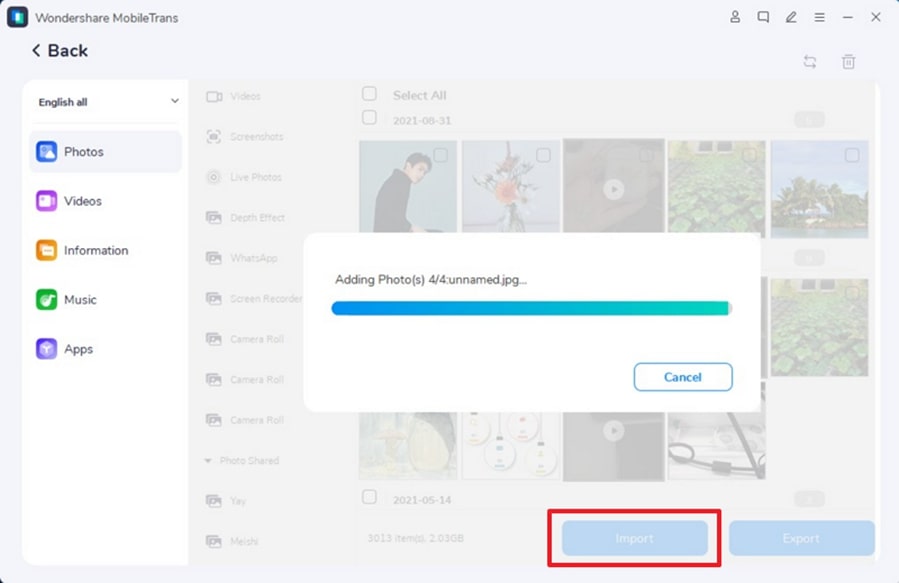
When directed to File Explorer, select the photos you wish to transfer to your iPhone and start importing. Once the photos are transferred, you can easily access them from your phone.
Part 3. Top Cloud Platforms Offering Quick Photo Transfer from PC to iPhone
If you are considering other options instead of Wondershare MobileTrans, there are some potential cloud platforms that you can look into. Let's discuss some of the cloud platforms we can use to figure out how to transfer our photos from PC to iPhone:
1. Google Photos
Developed by Google as a photo and video storage facility, it is used primarily as a backup to ensure you keep essential photos while transferring data. When moving your photos from PC to iPhone, Google Photos can be a great option for easy access. Take a look at the steps you could take to complete this process:
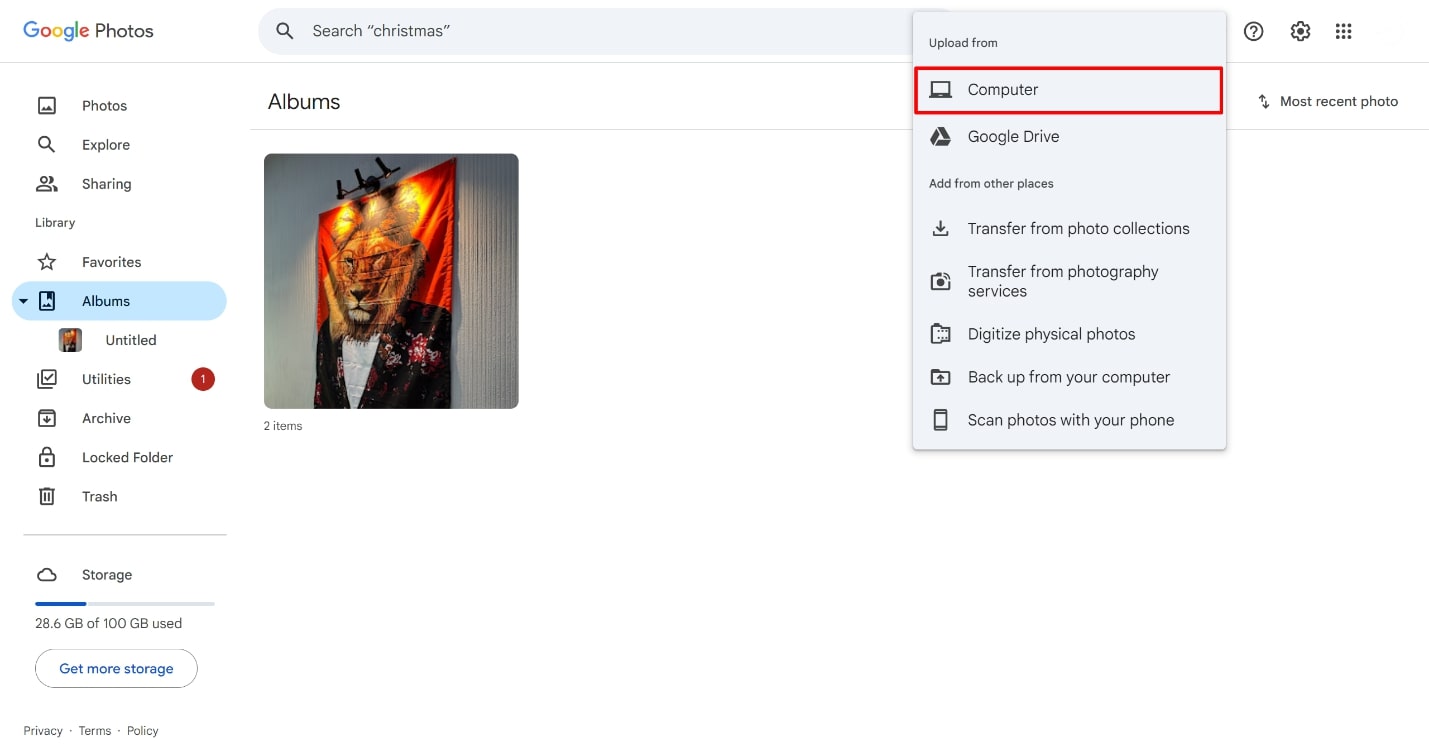
Step 1. Access the Google Photos website on your PC and sign in using your credentials. After signing in, click on the “Upload” tab and choose “Computer”. You can easily add any particular picture that you wish to transfer to your iPhone.
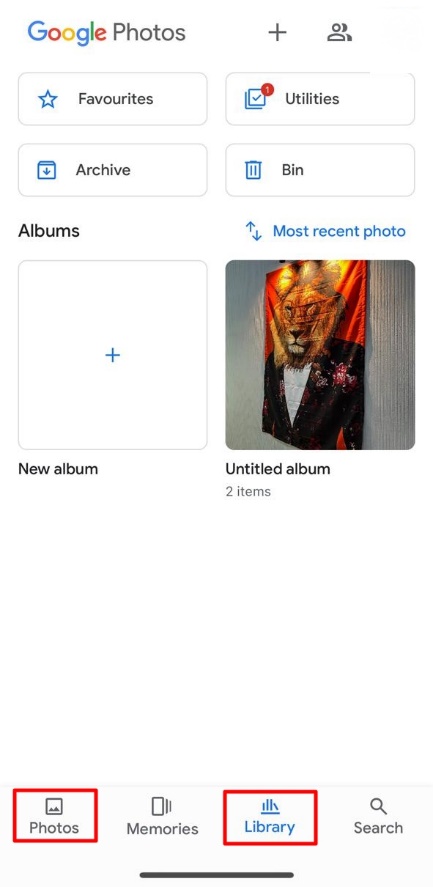
Step 2. On your iPhone, sign in with the Google account that you used on your computer. Look for photos in the "Photos" or "Albums" section and use them easily across your iPhone.
2. Dropbox
Dropbox is a cloud storage app that helps users store files, documents, and images and access them from any device. It is used to store and backup data, making data available anywhere you are. This tool can also be efficiently used to transfer data from PC to iPhone, which are explained as follows:
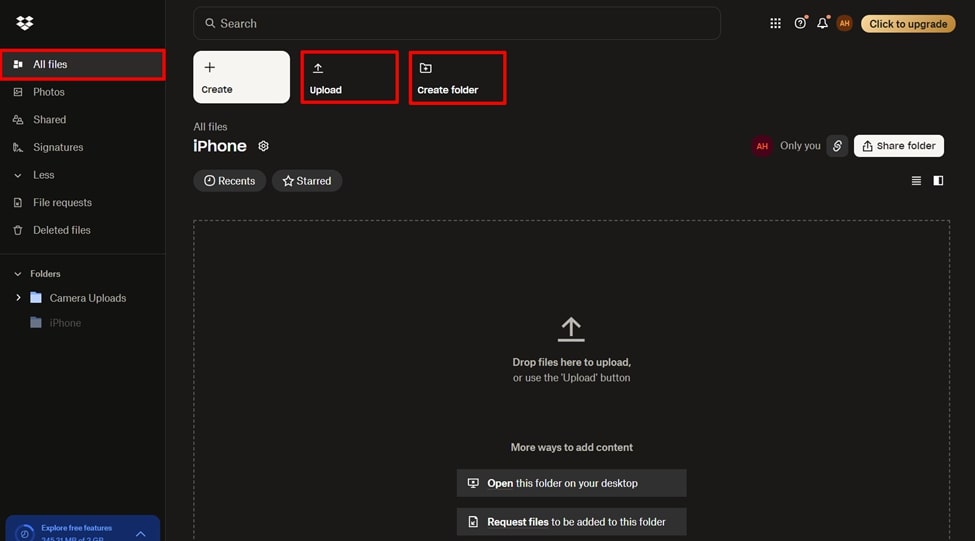
Step 1. Open Dropbox on your device’s browser and sign in using your Google account. For smooth transfer, make sure that you are using the same Dropbox account on both devices. On the left-side panel, press “All Files” and continue to tap the “Create folder” button to set up a folder for your images. Select “Upload” to add your required images to Dropbox.
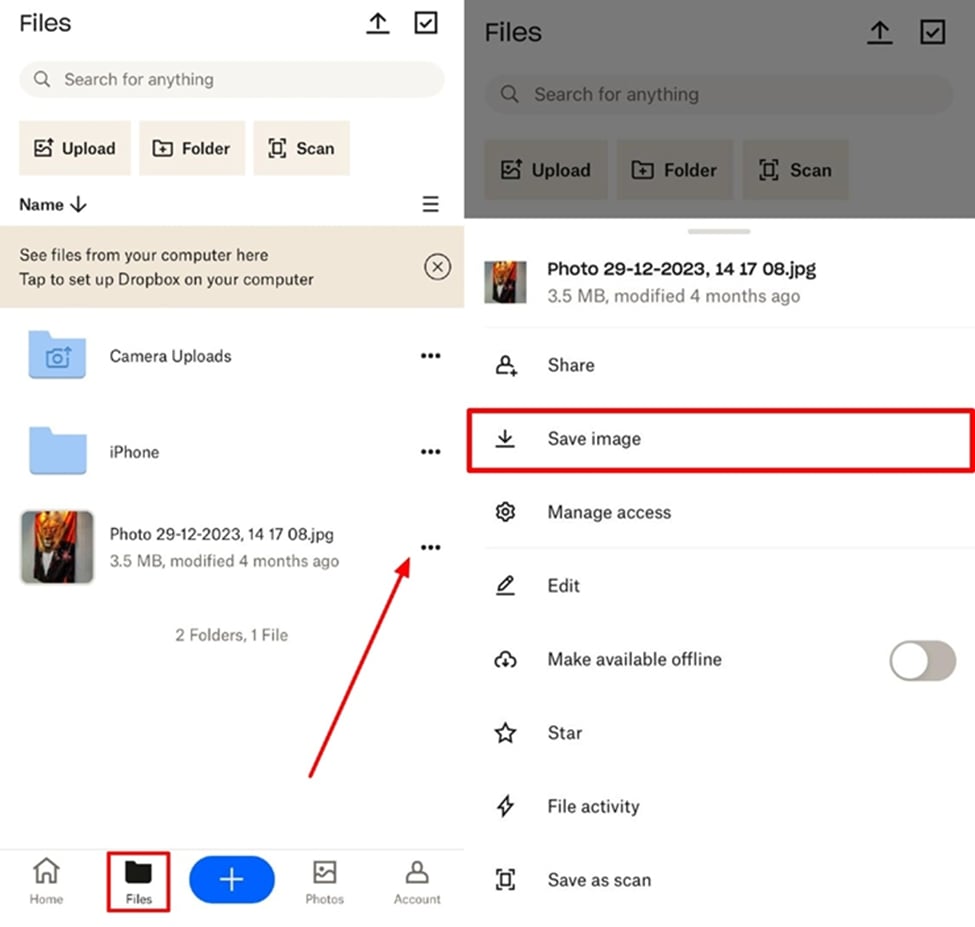
Step 2. This will sync the Dropbox active on your PC as well as your iPhone. Now you can move to the “Files” section, look for the photo, press on the “three-dots” and download the images to your iPhone device.
3. iCloud
As the primary source of data backup and accessibility for Apple devices, iCloud can also transfer data. While ensuring quality in your images, it also supports securing mail, notes, and other important details. However, to find out how this efficient method can be used to transfer photos from PC to iPhone, look into its steps:
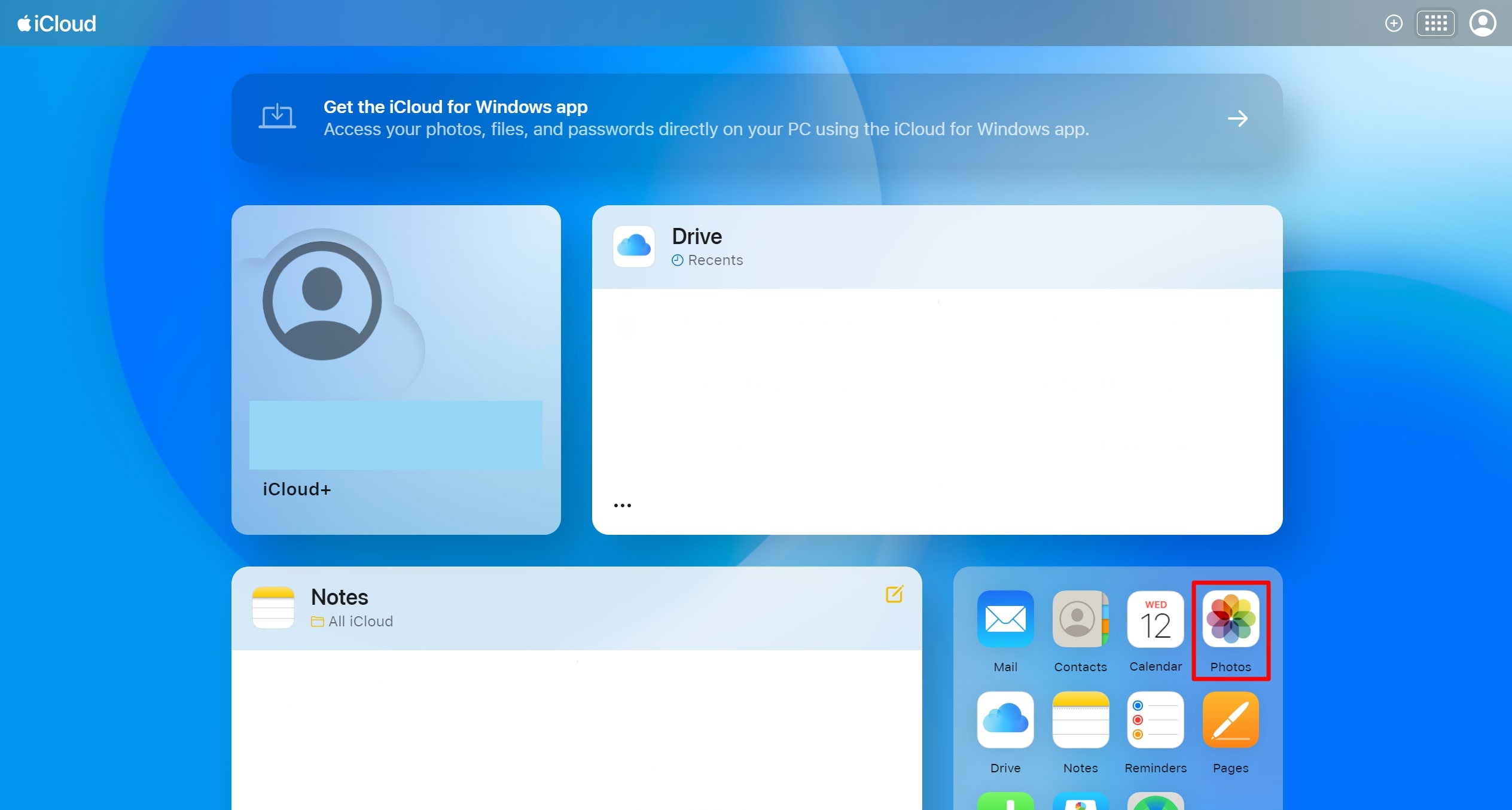
Step 1. Sign in to your iCloud account using your Apple ID and access the "Photos" from the widgets displayed on the homepage. As you access the iCloud Photo Library, you can look at all the photos associated with the Apple ID.
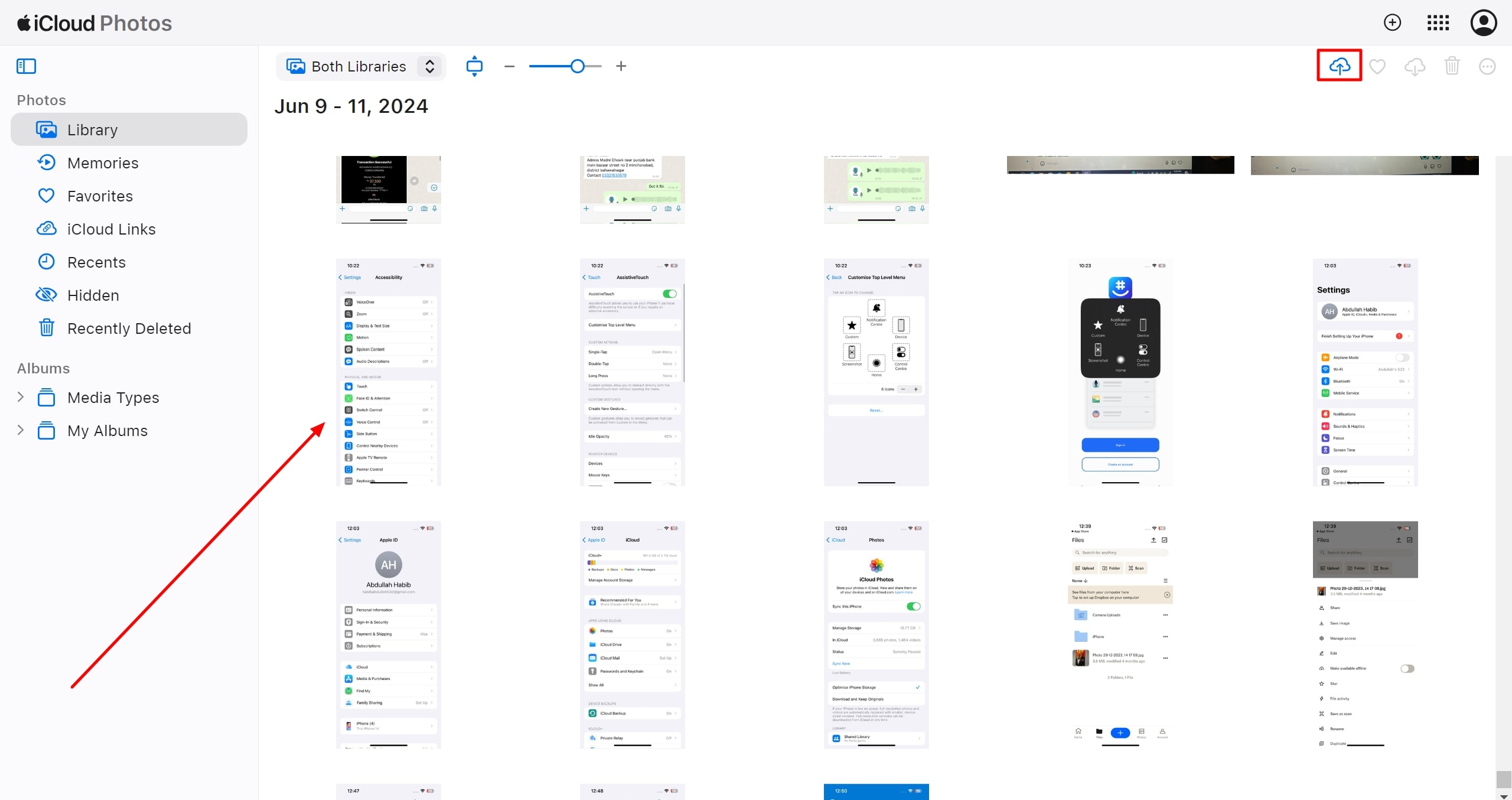
Step 2. Look for the "Upload" icon on the top-right and add the photos that you want to transfer to your iPhone. Once the photos get transferred, you can easily access them on your iPhone from your gallery.
Conclusion
This article helped us analyze the seamless ways of transferring photos from PC to iPhone. It is important that we are aware of what tool is the best fit for our requirements. In this scenario, the most recommended tool for individuals is Wondershare MobileTrans. This tool does not negatively impact the quality of photos while moving them from one device to another.
Comments
Comments are moderated to keep the discussion useful and respectful. Spam, automated submissions, and low-value promotional comments are removed. Comments with outbound links may be approved when the link is relevant to the article and genuinely helpful to readers.
No comments have been published yet.