

Why Testing Your Camera and Microphone Before an Online Meeting Matters
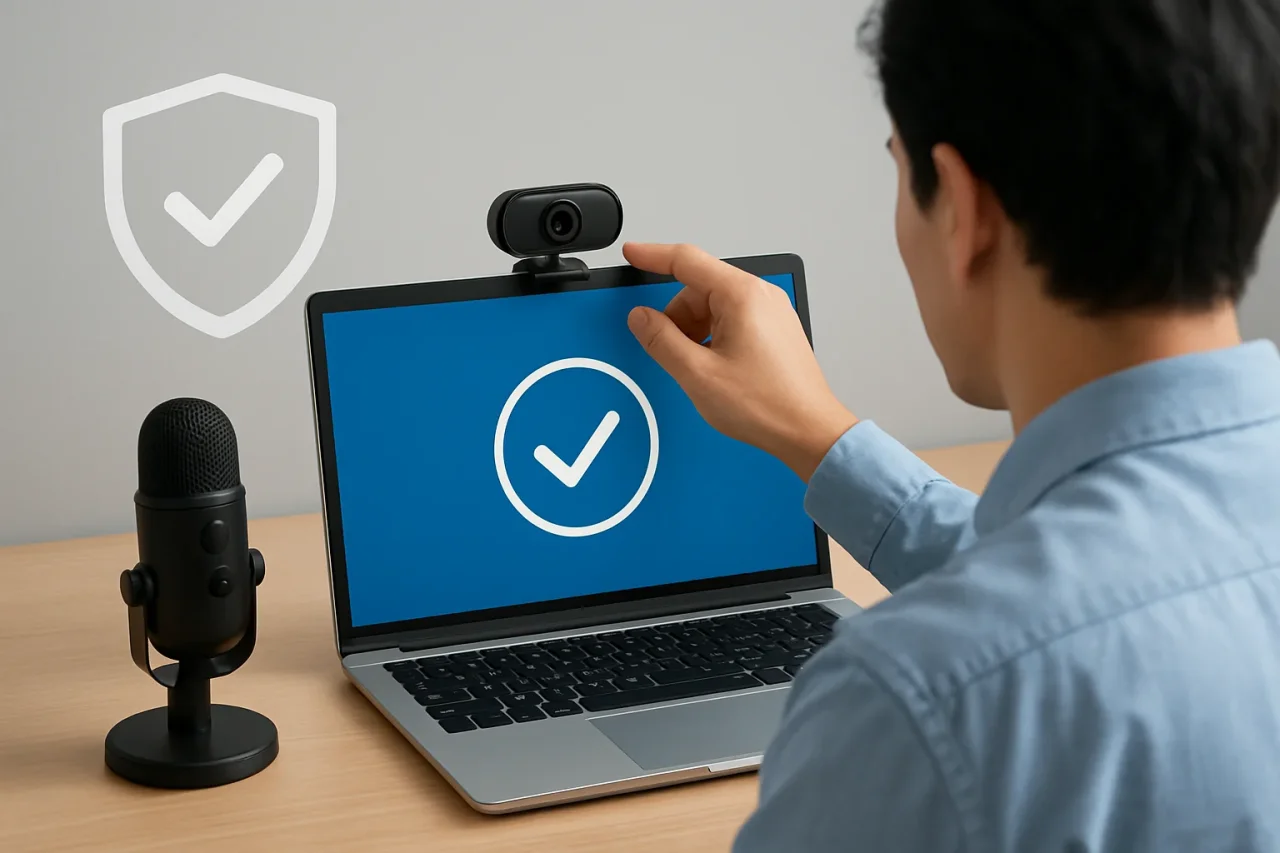
Video communication has become an essential part of modern life. From remote working and online education to virtual interviews, webinars, and customer meetings, millions of people rely on webcams and microphones every day. Although video conferencing platforms have become increasingly reliable, technical issues remain one of the most common causes of disrupted online experiences.
A poor-quality microphone, an incorrectly selected camera, or blocked browser permissions can quickly turn an important meeting into a frustrating experience. These issues often appear at the worst possible moment, leaving users scrambling to troubleshoot while colleagues or clients wait. Fortunately, most of these problems can be avoided with a few simple checks before joining a meeting.
Preparing your equipment in advance is no longer just good practice. It has become an important part of maintaining professionalism, improving communication, and ensuring that every online interaction begins smoothly.
Preparing Your Devices Before Every Meeting
Whether you are attending a business presentation, participating in an online interview, or hosting a virtual event, taking a few minutes to verify your equipment can prevent unnecessary interruptions. Many professionals perform a webcam and microphone test before joining an online session to confirm that both devices are functioning properly, browser permissions are enabled, and audio and video quality meet expectations.
Simple checks can identify common problems that might otherwise go unnoticed. A webcam may be connected but incorrectly selected in conferencing software. A microphone may be capturing background noise instead of your voice. Even something as straightforward as muted browser permissions can prevent participants from being seen or heard.
Performing these checks beforehand allows users to resolve technical issues without the pressure of a live audience. This preparation contributes to a more confident and professional experience while reducing unnecessary delays for everyone involved.
Common Causes of Webcam and Microphone Problems
Many users assume hardware failures are responsible when cameras or microphones stop working. In reality, software settings and browser permissions account for a large proportion of technical difficulties experienced during online meetings.
Modern operating systems include extensive privacy controls that determine which applications can access connected devices. Following software updates or browser changes, previously approved permissions may be reset, preventing conferencing platforms from correctly detecting cameras or microphones.
Device selection also creates confusion for many users. Individuals with multiple webcams, headsets, or external microphones connected simultaneously may discover that conferencing software automatically selects the wrong device. This frequently results in meetings beginning without video or with poor audio quality.
Browser compatibility represents another important consideration. Different browsers occasionally handle media permissions differently, particularly when new security features are introduced. Ensuring that both the browser and the conferencing platform are fully up to date helps minimize compatibility issues.
Why Audio Quality Is Just as Important as Video
Many people focus primarily on camera quality while overlooking the importance of clear audio. In practice, participants are often more tolerant of average video quality than of poor sound quality. Conversations become difficult when voices are distorted, interrupted, or overwhelmed by background noise.
Poor microphone positioning can reduce speech clarity significantly. External sounds, such as keyboard typing, office conversations, traffic, or household appliances, may also distract listeners and reduce overall meeting quality.
Selecting an appropriate microphone and positioning it correctly can dramatically improve communication. Dedicated USB microphones, high-quality headsets, and modern laptop microphones often produce excellent results when properly configured. Equally important is choosing a quiet environment whenever possible and reducing unnecessary background noise before joining a call.
Many conferencing platforms now include background noise suppression, but these features should complement good preparation rather than replace it.
Browser Permissions and Privacy Settings
Privacy has become a major consideration for both operating system developers and browser providers. While stronger security benefits users, it also means cameras and microphones require explicit permission before they can be accessed.
When joining a meeting for the first time, browsers typically display permission requests asking whether the website may use connected devices. Accidentally denying these requests can prevent the meeting platform from accessing essential hardware until permissions are manually restored.
Users should also understand that operating system privacy settings function separately from browser permissions. Even if a browser has permission to use a webcam, the operating system may still prevent access if camera permissions are turned off globally.
Reviewing both browser and system settings before important meetings helps eliminate many common technical obstacles while ensuring users retain full control over their privacy preferences.
Keeping Software and Drivers Up to Date
Technology evolves rapidly, and regular updates play an important role in maintaining compatibility between hardware and software. Webcam manufacturers, microphone developers, and operating system providers frequently release updates that improve performance, strengthen security, and resolve compatibility issues.
Ignoring these updates may increase the likelihood of technical problems during online meetings. Older drivers can cause devices to malfunction after major operating system upgrades, while outdated conferencing applications may struggle to support newer hardware features.
Automatic updates simplify maintenance for most users, although organizations with managed IT environments often schedule updates centrally to minimize disruption. Regardless of the approach, ensuring that software remains current reduces the risk of unexpected technical failures.
Regular maintenance also contributes to improved security, protecting users against vulnerabilities that may affect connected devices or conferencing platforms.
Best Practices for Professional Online Meetings
Successful online meetings involve more than functioning technology. Creating a professional environment contributes significantly to the quality of communication and helps establish a positive impression among colleagues, customers, and prospective employers.
Lighting should be positioned in front of the speaker whenever possible, allowing facial expressions to remain clearly visible. Strong backlighting from windows can make participants appear as silhouettes, even when using high-quality cameras.
Camera placement also deserves attention. Positioning the webcam at eye level creates a more natural conversation by encouraging direct eye contact. Looking down towards a laptop placed on a desk often produces less flattering camera angles while reducing engagement with other participants.
Internet stability remains equally important. Whenever practical, a wired network connection offers greater reliability than wireless connections, particularly during presentations or webinars where uninterrupted communication is essential.
Finally, joining meetings several minutes early provides valuable time to confirm audio levels, verify camera framing, and resolve any unexpected issues before the session officially begins.
Looking Ahead
Online communication has become a permanent feature of both professional and personal life. As organizations continue to embrace remote collaboration, hybrid working, and digital events, reliable audio and video performance will remain essential for productive communication.
Fortunately, many of the most common technical problems can be prevented through simple preparation. Checking equipment before every meeting, reviewing browser permissions, maintaining up-to-date software, and creating an appropriate working environment all contribute to smoother online experiences.
Rather than waiting for problems to appear during an important presentation or client discussion, users who develop a consistent pre-meeting routine are more likely to enjoy reliable performance and greater confidence. Small preparation steps often make the difference between a disrupted meeting and one that runs efficiently from beginning to end.
Technology will continue to evolve, introducing new collaboration tools and communication platforms. Regardless of those developments, the importance of reliable webcams, clear microphones, and careful preparation is unlikely to change. Investing a few minutes before every online meeting remains one of the simplest and most effective ways to ensure that conversations begin professionally and continue without unnecessary interruption.
Featured Image generated by ChatGPT.
Comments
Comments are moderated to keep the discussion useful and respectful. Spam, automated submissions, and low-value promotional comments are removed. Comments with outbound links may be approved when the link is relevant to the article and genuinely helpful to readers.
No comments have been published yet.